

You can watch NipzTV directly on your Smart TV, with no Firestick or extra box needed. This NipzTV Smart TV setup is a little different from a Firestick: on a Smart TV you install a player app from your TV’s app store, then send NipzTV your TV’s MAC address so your subscription can be linked to it. This guide follows the NipzTV setup guide for Samsung, LG and Android TV. Using a Firestick instead? See our Firestick setup guide.
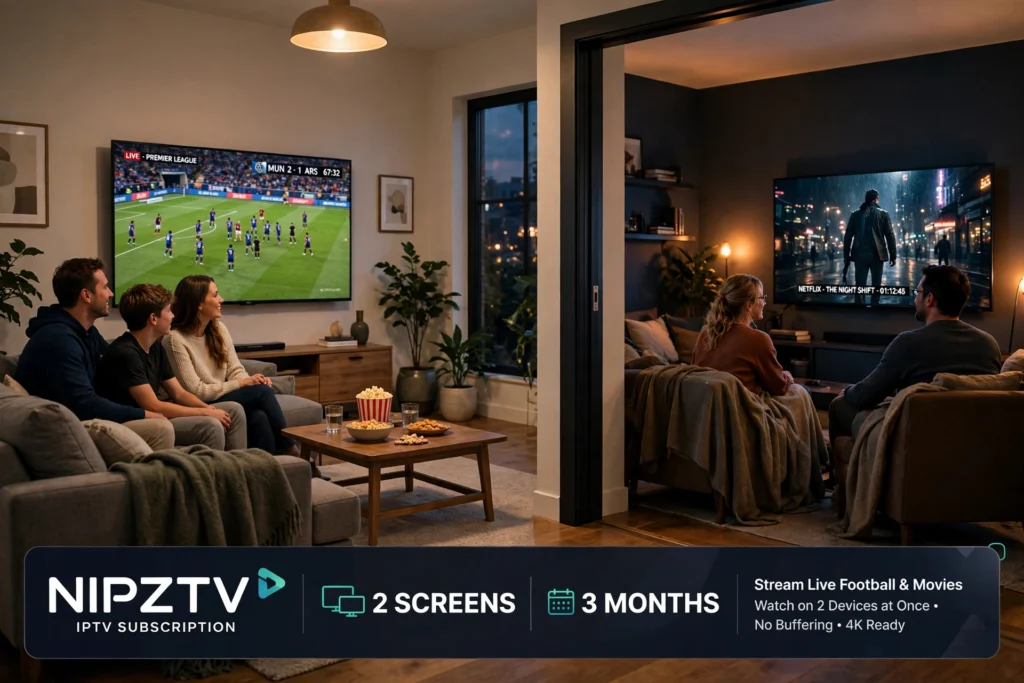
What you need first for your NipzTV Smart TV setup
Before you start, make sure you have a Samsung, LG or Android TV connected to the internet, and a NipzTV
subscription or a 24-hour free trial. You can choose a plan in the NipzTV shop: 1 Screen plans start at 24.99 euros for 3 months, and 2 Screens plans start at 44.99 euros for 3 months, with 6-month and 12-month options as well. Your subscription includes 26,000+ live channels, 150,000+ movies and series, live sports, HD and 4K quality, an electronic programme guide (EPG) and 24/7 support.
Note the difference from other devices: on a Smart TV, you do not sign in with a username and password in the app. Instead, the player app shows a MAC address on screen, and you send that address to NipzTV. Keep a phone or computer close by so you can message support.
Step 1: Install a player app on your Smart TV
Open your TV’s app store and install one of the apps named in the setup guide: SetIPTV, NetIPTV, IBO Player Pro or IBO Player. If you are using IBO Player, also download and install the companion app on your phone, as the guide explains. These apps work on Samsung, LG and other Smart TVs.
Step 2: Find your MAC address
Open the player app on your TV. Your MAC address will appear on screen. If you are using IBO Player, the screen will also show a Device Key, so note that down as well. Write the address down exactly, because one wrong character will stop the link from working.
Step 3: Send your MAC address to NipzTV
Send the MAC address to NipzTV on WhatsApp, by email or in live chat. If you are using IBO Player, send the Device Key too. NipzTV will link your subscription to that MAC address. After a few minutes, restart or reboot your TV and open the player app again.
Step 4: Start watching
When you open the app after the restart, your channels and on-demand content should load. Browse live TV, live sports and movies and series from the app menu. A 1 Screen plan is for one screen at a time, while a 2 Screens plan lets two screens watch at the same time, so if someone else wants to watch on another device at the same time, choose 2 Screens. All plans are one-off payments with no auto-renew, and you pay by PayPal in the shop. For more answers, see the NipzTV FAQ.
If your NipzTV Smart TV setup does not work
If nothing loads after the restart, first check that you sent the MAC address exactly as it appeared on screen, and that you waited a few minutes before restarting the TV. Close and reopen the player app, restart the TV again, and check your internet connection. If it still does not work, contact NipzTV support, which is available 24/7, by email at admin@nipztv.org, on Telegram at @Nipztv, or on WhatsApp at +447874190820. Tell support which TV and player app you use, and send your MAC address again. You can also contact NipzTV through the contact page.
Not sure yet? Start a 24-hour free trial, follow the steps above, and check that NipzTV works on your Smart TV before you choose a plan in the shop. You pay by PayPal in the shop, and your NipzTV Smart TV setup is then complete.
Pingback: NipzTV Firestick Setup | How to Set Up NipzTV