

This NipzTV Firestick setup takes only a few minutes. You do not need cables or extra hardware: your Firestick, a NipzTV subscription or free trial, and the login details sent to you are enough. This guide follows the NipzTV setup guide, step by step. Setting up a Smart TV instead? See our Smart TV setup guide.
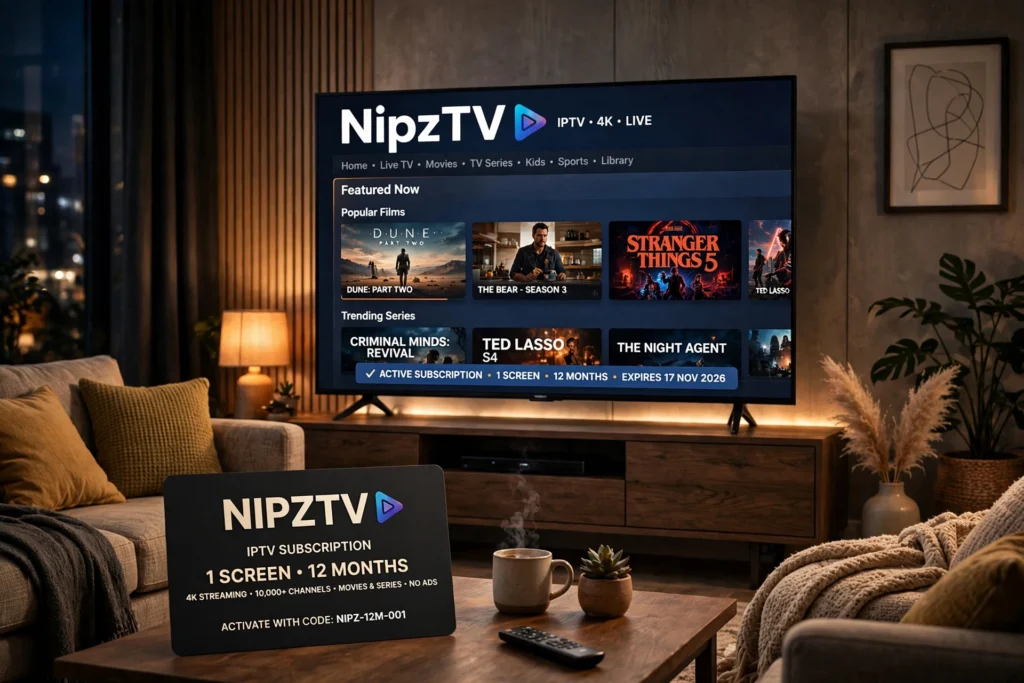
What you need first for your NipzTV Firestick setup
Before you start, make sure you have three things. First, an Amazon Firestick connected to your TV and to the internet. Second, a NipzTV subscription, or a 24-hour free trial if you want to test the service first. You can choose a plan in the NipzTV shop: 1 Screen plans start at 24.99 euros for 3 months, and 2 Screens plans start at 44.99 euros for 3 months, with 6-month and 12-month options as well. Third, your NipzTV login details. These normally arrive 0-2 hours after your purchase, or after you ask for a trial, so check your inbox and your spam folder before you start.
Keep your login details close by. You will need them when you sign in to the player app, and they are the same details NipzTV sends by email, WhatsApp or chat after your order.
Step 1: Install the Downloader app
On your Firestick, open the Amazon App Store and search for Downloader. Install the Downloader app, then open it. Downloader is the tool the setup guide uses to install the IPTV player on a Firestick.
Step 2: Install IPTV Smarters Pro
In Downloader, enter this address: https://www.iptvsmarters.com/smarters.apk. Download and install the app, then open IPTV Smarters Pro. Choose Login with Xtream Codes API, then enter the login details NipzTV sent you. Once you sign in, your channels, movies and series should load, and you can start watching in HD and 4K quality. Your NipzTV Firestick setup is now ready.
Step 3: Try TiviMate as an alternative
If you prefer a different player, you can use TiviMate instead. In Downloader, enter https://tivimates.com/tiviapk to download and install TiviMate, then open it. Choose Add Playlist, then Xtream codes, and enter your NipzTV login details. Your subscription includes 26,000+ live channels, 150,000+ movies and series, live sports and an electronic programme guide (EPG), whichever player you use.
What to watch, and 1 Screen or 2 Screens?
Once you are signed in, browse live TV, live sports and on-demand movies and series from the player menu. A 1 Screen plan is for one screen at a time, while a 2 Screens plan lets two screens watch at the same time, so choose 2 Screens if someone else in your household wants to watch on another device at the same time. All plans are one-off payments with no auto-renew, and you pay by PayPal in the shop. If you are not sure which plan fits, see the NipzTV FAQ.
If your NipzTV Firestick setup does not work
If the app does not load, or a channel buffers, first check that you typed your login details exactly as they were sent to you, then close and reopen the player app and restart your Firestick. Make sure your Firestick is connected to the internet, and check that you have received your login details — they normally arrive within 0-2 hours. If the problem continues, contact NipzTV support, which is available 24/7, by email at admin@nipztv.org, on Telegram at @Nipztv, or on WhatsApp at +447874190820. Tell support which device you use, which player app you installed, and what you see on screen. You can also contact NipzTV through the contact page.
Want to try before you buy? Start a 24-hour free trial, follow the steps above, and check that NipzTV works on your Firestick. Then choose the plan that suits you in the shop. Your NipzTV Firestick setup is then complete.
Pingback: How to Set Up NipzTV on a Smart TV (Samsung, LG & Android TV) - NipzTV